



Introduction
Is your Mac getting slow? Or is your storage showing full? Most of the time, the real problem is apps that you no longer need. But a lot of beginners don’t know how to uninstall apps on Mac the right way.
- Introduction
- Why You Should Uninstall Apps on Mac
- Basic Methods to Delete Apps on Mac
- Method 1 – Using Launchpad (Best for App Store Apps)
- Method 2 – Using Finder (Most Common Method)
- Method 3 – Using Built-in Storage Tool
- How to Completely Uninstall Apps (No Leftover Files)
- Manual Cleanup Method
- How to Delete Apps That Won’t Uninstall
- Third-Party Tools for Complete Uninstall
- Popular Uninstaller Tools
- Common Mistakes to Avoid
- How to Keep Your Mac Clean
- Conclusion
- FAQs
Simply moving an app to Trash is NOT a complete uninstall. It leaves behind hidden files that still eat up your storage. In this guide, you will learn every method — step by step — in the simplest words possible.
Why You Should Uninstall Apps on Mac
Before jumping to steps, let’s quickly understand why this matters:
- Improve performance: Apps running in the background slow your Mac down. Removing unused apps means more speed for you.
- Free up storage space: Some apps are 1–5 GB in size. Deleting apps on Mac that you don’t use frees up that space instantly.
- Better security: Old apps that are never updated can have security holes. Hackers can use them to enter your system.
- Keep system clean: A clean Mac is a fast Mac. Less clutter = smoother experience.
Basic Methods to Delete Apps on Mac
Method 1 – Using Launchpad (Best for App Store Apps)
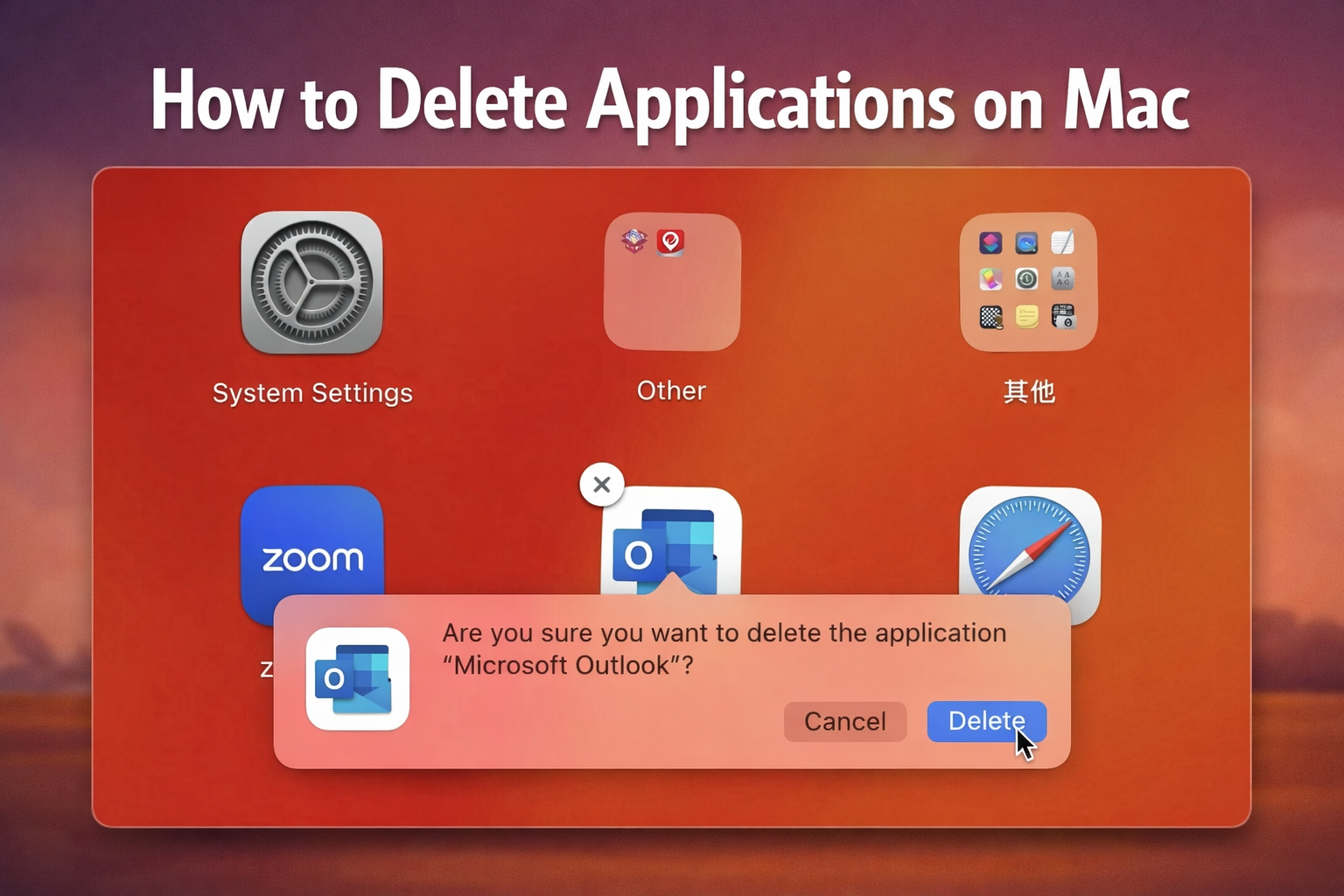
This is the easiest way to uninstall app on Mac if it was downloaded from the App Store.
- Click the Launchpad icon in your Dock (the rocket ship icon)
- Find the app you want to remove
- Press and hold the Option key on your keyboard
- All apps will start to wiggle, and an “X” button will appear
- Click the “X” on the app you want to delete
- Confirm by clicking “Delete”
Limitation: This only works for App Store apps. For other apps, use the methods below.
Method 2 – Using Finder (Most Common Method)
This is how most people delete apps on Mac. It works for almost all apps.
- Open Finder (the smiley face icon in your Dock)
- Click on Applications in the left sidebar
- Find the app you want to remove
- Drag it to the Trash (or right-click → Move to Trash)
- Right-click the Trash icon and select Empty Trash
Done! But remember — this still leaves behind some hidden files. We will cover how to clean those in the next section.
Method 3 – Using Built-in Storage Tool
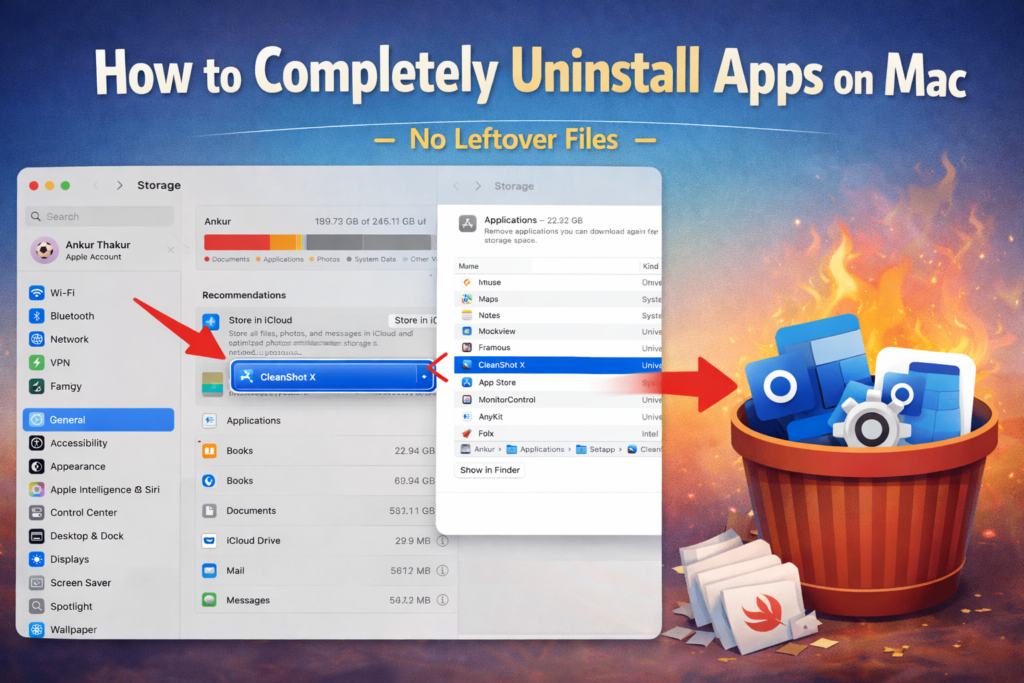
Mac has a built-in tool that also lets you uninstall apps on Mac directly.
- Click the Apple logo (top-left corner)
- Go to System Settings → General → Storage
- Wait for the list to load
- Find the app in the list and click the delete/minus button
This method is clean and easy. It also shows you how much space each app is using very helpful!
How to Completely Uninstall Apps (No Leftover Files)
Why Leftover Files Remain
When you delete an app using Finder or Launchpad, macOS removes the main app file. But the app also stores extra files in hidden folders:
- Cache files temporary data saved by the app
- Preferences your settings for that app
- Support files extra data the app created
These files stay even after you delete the app. Over time they pile up and waste your storage.
Manual Cleanup Method
To completely uninstall apps on Mac and remove all leftover files follow these steps after deleting the app:
- Open Finder
- Click Go in the top menu bar
- Hold the Option key you will see “Library” appear in the menu
- Click Library
Now go into these three folders and delete files with the app’s name:
~/Library/Application Support
~/Library/Caches
~/Library/Preferences
Important Tip: Only delete files that have the app’s name in them. Do not randomly delete other files that can cause problems.
How to Delete Apps That Won’t Uninstall
Sometimes an app refuses to be deleted. This usually happens when the app is still running.
Step 1 – Force Quit the App
Press Command + Option + Esc on your keyboard. A window will open showing all running apps. Pick out the app you want to get rid of, then click “Force Quit.” Try getting rid of it again.
Step 2 – Restart Your Mac
Turn your Mac back on.This is the simplest fix. A quick restart closes all background processes and usually fixes the problem.
Step 3 – Use Terminal For Advanced Users
If nothing else works you can force delete apps on Mac using Terminal:
- Open Terminal (search it in Spotlight with Command + Space)
- Type: sudo rm -rf followed by a space
- Drag the app from Applications into the Terminal window this adds the path automatically
- Press Enter and type your Mac password
Use this method carefully. Terminal commands are powerful and permanent.
Third-Party Tools for Complete Uninstall
If manual cleanup sounds too complicated third-party tools make it super easy to how to delete an app on Mac with zero leftover files.
Why Use These Tools?
- They automatically find and delete all hidden files
- Save you time
- Prevent accidental deletion of important files
- Great for non technical users
Popular Uninstaller Tools
| Tool | Price | Best For |
| AppCleaner | Free | Simple complete uninstall |
| CleanMyMac | Paid | Full system cleanup |
AppCleaner is highly recommended for beginners it’s free, simple and very effective. Just drag and drop an app onto AppCleaner and it finds all related files automatically before deleting everything at once.
Common Mistakes to Avoid
Many people make these mistakes when trying to how to uninstall apps on Mac:
- Only moving app to Trash — this doesn’t remove hidden files
- Ignoring cache files — they stay and take up space
- Trying to delete a running app — always quit the app first
- Forgetting to cancel subscriptions — deleting the app doesn’t cancel billing. To stop, go to App Store → Account → Subscriptions.
How to Keep Your Mac Clean
- Clear your cookies often: Every few months, use AppCleaner or do it by hand.
- Look at new apps: You can get rid of apps that you don’t want to start up immediately by going to System Settings > General > Login Items on your Mac.
- Take care of your storage: You can see everything that’s taking up room on your iPhone by going to Apple > System Settings > Storage.
- Always make a copy of your files before you do a big clean up. Use Time Machine to get back anything you accidentally removed.
- Always make a copy of your files before you do a big clean up. Use Time Machine to get back anything you accidentally removed.
Conclusion
Now you know exactly how to uninstall apps on Mac the right way. Here’s a quick recap:
The three basic methods are Launchpad (for App Store apps) Finder (for most apps) and the built in Storage tool. For a truly clean removal with no leftover files, either clean the Library folders manually or use a free tool like AppCleaner.
Remember simply dragging an app to Trash is not enough. A complete uninstall means removing the app AND its hidden files. Do this regularly and your Mac will stay fast clean and secure.
FAQs
Q1: When I delete an app, do I also delete my data?
No. Your documents and personal files stay safe in folders like Documents or Downloads. Only the app is removed.
Q2: Can I delete system apps?
Not really. Built-in apps on macOS, like Safari, Photos, and Finder, can’t be removed the usual way.
Q3: What is the best way to get rid of something for good?
The best thing to do is to use third-party tools like AppCleaner. Forget the app and all of its hidden files with just one click. You don’t need to do anything.
Q4: Is it safe to use Terminal?
Sure, but be careful. Use only things that you know how to do. Important system files can be lost if you give the wrong order.